The client brief
Mira is a freelance photographer. She downloaded a month of bank transactions and has no idea where her money went. Categorise everything and give her a one-page summary. This is bookkeeping support, not tax advice. Made-up client, fake data.
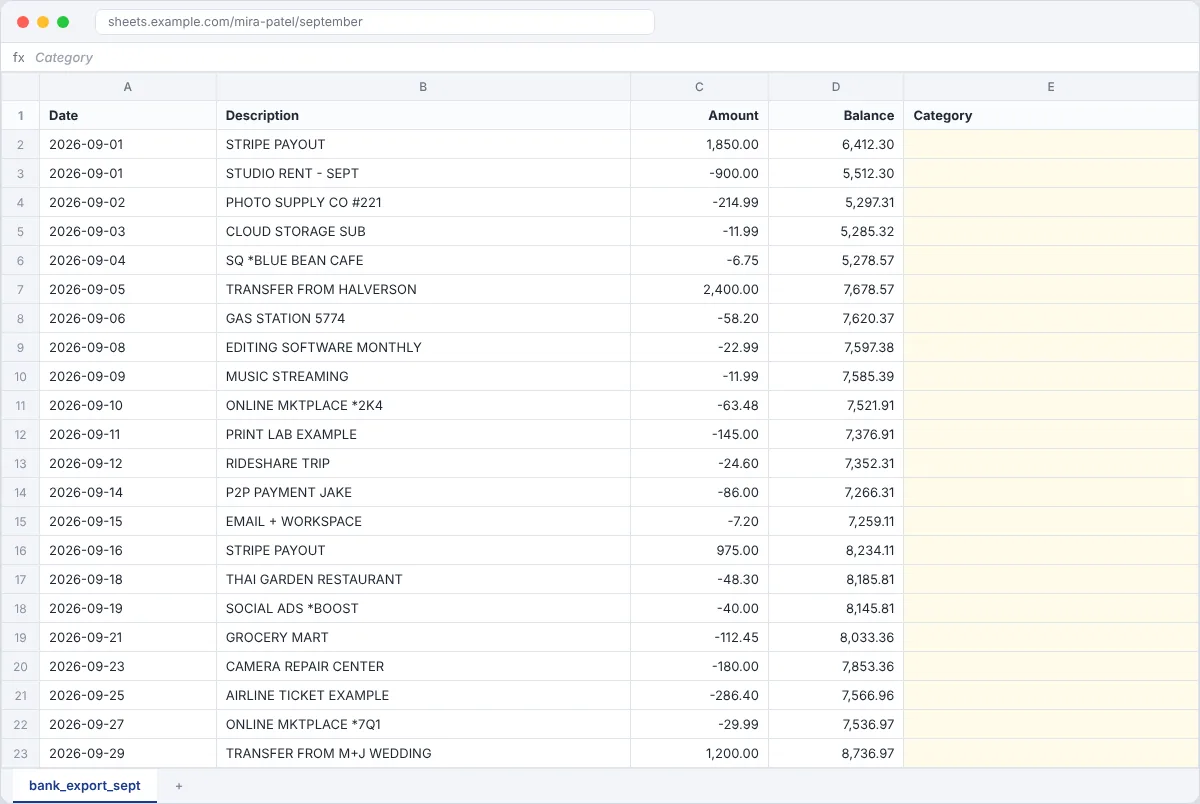
Your deliverables
- A category on every transaction
- A summary tab: money in, money out, totals by category
- A short list of transactions the client needs to explain
Do the task
Set up categories
Income, Equipment, Software, Travel, Meals, Marketing, Office, Personal, Ask client. Add them as a dropdown.
Categorise every row
Use the description and the amount. If you're not sure, choose Ask client. Guessing is how books go wrong.
Spot personal spending
Groceries and streaming don't belong in business books. Flag them. Don't delete them.
Build the summary
A second tab with SUMIF per category, plus total in, total out and the difference.
Add one chart
A simple bar chart of spending by category. One is enough.
Write your questions
Plain English, one per line: "Sep 14, $86 to Jake. Business or personal?"
Screenshots to capture for your portfolio
- The categorised transactions
- The summary tab with the chart
- Your questions for the client
More tips
- SUMIF example:
=SUMIF(Transactions!E:E,"Software",Transactions!C:C) - Don't call it a tax report or give tax advice. That's her accountant's job.
- Ready for real software? Xero has a free demo company you can practise in.
- Colour the Ask client rows so they're easy to find.
Follow Kailami